ScreenToast / Blog / How to screen record on a Mac: 4 ways
How to screen record on a Mac: 4 ways, step by step
Every Mac can record its screen with nothing to install. This guide covers how to screen record on a Mac four ways — the keyboard shortcut, QuickTime, recording with sound, and turning a raw recording into something worth sharing — so you can pick the one that fits.
Method 1: the Shift-Command-5 shortcut (fastest)
- Press Shift-Command-5. The Screenshot toolbar appears at the bottom of the screen.
- Click Record Entire Screen or Record Selected Portion (drag the box to the area you want).
- Click Options to pick a microphone, a timer, a save location, and whether to show mouse clicks.
- Click Record.
- To stop, click the stop button in the menu bar or press Command-Control-Esc.
A thumbnail appears in the corner; click it to trim, or let it save to your Desktop.
Method 2: QuickTime Player
- Open QuickTime Player from Applications.
- Choose File → New Screen Recording. The same toolbar opens.
- Record as above. When you stop, the recording opens in QuickTime, where you can Edit → Trim.
To include your face, open File → New Movie Recording first, keep that window in a corner, then start the screen recording.
Method 3: record with sound
The built-in recorder records a microphone — pick it under Options. It can't record system audio (the sound your apps make). For that you have two choices:
- Install a free virtual audio driver such as BlackHole and route audio through it. Full steps here.
- Use a recorder that captures system audio directly, such as ScreenToast, CleanShot X or OBS Studio.
Method 4: record a polished video with ScreenToast
The built-in recorder gives you a raw file: tiny text, a jumpy cursor, no zoom. If someone else will watch it — a demo, a tutorial, a launch post — a recorder that edits for you saves an hour.
- Download ScreenToast (under 10 MB) and allow screen recording when macOS asks.
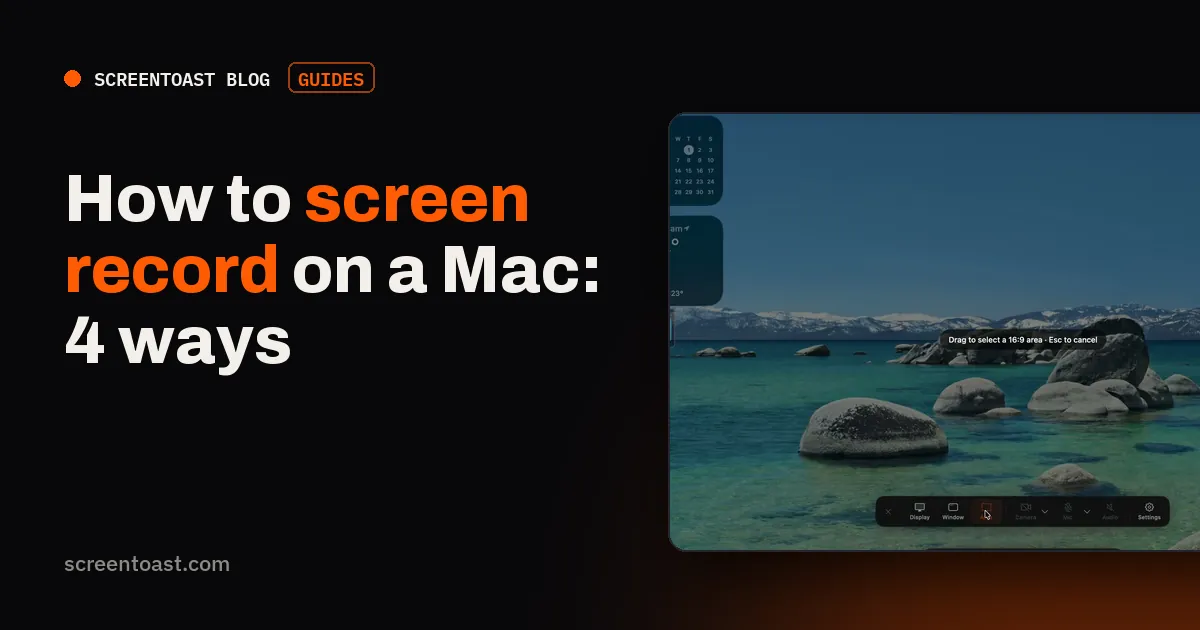
- In the recorder bar, choose Display, Window or Area. For an area, press a number key while dragging to lock its shape — 2 for 16:9, 3 for 9:16.
- Toggle camera, mic and system audio as needed.
- Record. Pause with ⌘⇧1; stop with ⌘⇧2 from anywhere.
- The editor opens with zooms on your clicks and a smoothed cursor already applied. Adjust anything, then press ⌘E and pick a preset.
Recording and editing are free; exporting needs Pro.
Which method should you use?
| You need… | Use |
|---|---|
| A quick capture for yourself or a bug report | Shift-Command-5 |
| A quick trim afterwards | QuickTime |
| Sound from apps or a video | BlackHole, or a recorder with system audio |
| A video other people will watch | ScreenToast or another polishing recorder |
Troubleshooting
If the recording is black, shows only your wallpaper, or the app won't start recording, it's almost always the permission in System Settings → Privacy & Security → Screen & System Audio Recording. See Mac screen recording not working? 9 fixes.
Frequently asked questions
What is the shortcut to screen record on a Mac?
Shift-Command-5 opens the Screenshot toolbar, where you can record the whole screen or a selected portion. Press Command-Control-Escape, or click the stop button in the menu bar, to stop.
Where do Mac screen recordings save?
By default, to your Desktop, named 'Screen Recording' with the date and time. Change it in the Screenshot toolbar under Options > Save to.
Can I screen record on a Mac with sound?
With your microphone, yes — choose it under Options. System audio (sound from apps) isn't supported by the built-in recorder; use an app that records it, or a virtual audio driver.
How long can a Mac screen recording be?
There's no set limit; it's limited by free disk space.
Try ScreenToast free.
Record and edit as much as you like, with no sign-in and no trial clock. Pro is $4.92 a month, billed yearly, when you're ready to export.
macOS 14 or later · Apple silicon and Intel · Under 10 MB