ScreenToast / Blog / How to add captions to a screen recording on Mac
How to add captions to a screen recording on Mac
On LinkedIn, X and Instagram, most videos start muted. A demo or tutorial without captions loses those viewers in the first second. Here's how to add captions to a screen recording on a Mac — automatically, styled for social, and as an .srt file for YouTube.
Two kinds of captions
- Burned-in (open) captions are part of the picture. Use them for social feeds, where autoplay is muted and viewers won't turn captions on.
- Caption files (closed captions), usually .srt, are uploaded next to the video. Use them on YouTube and your website, where viewers can toggle them and search engines can read them.
Ideally, do both from the same transcript.
Method 1: automatic captions in ScreenToast
- Record with your Mic on, talking as you go. (Or record silently and use a narration voice — narration gets captions too.)
- In the editor, open the transcript. Your words are transcribed on your Mac; nothing is uploaded.
- Fix any misheard words — especially product names.
- While you're there, edit by transcript: delete a word to cut it from the video, and remove every "um" and long pause in one click.
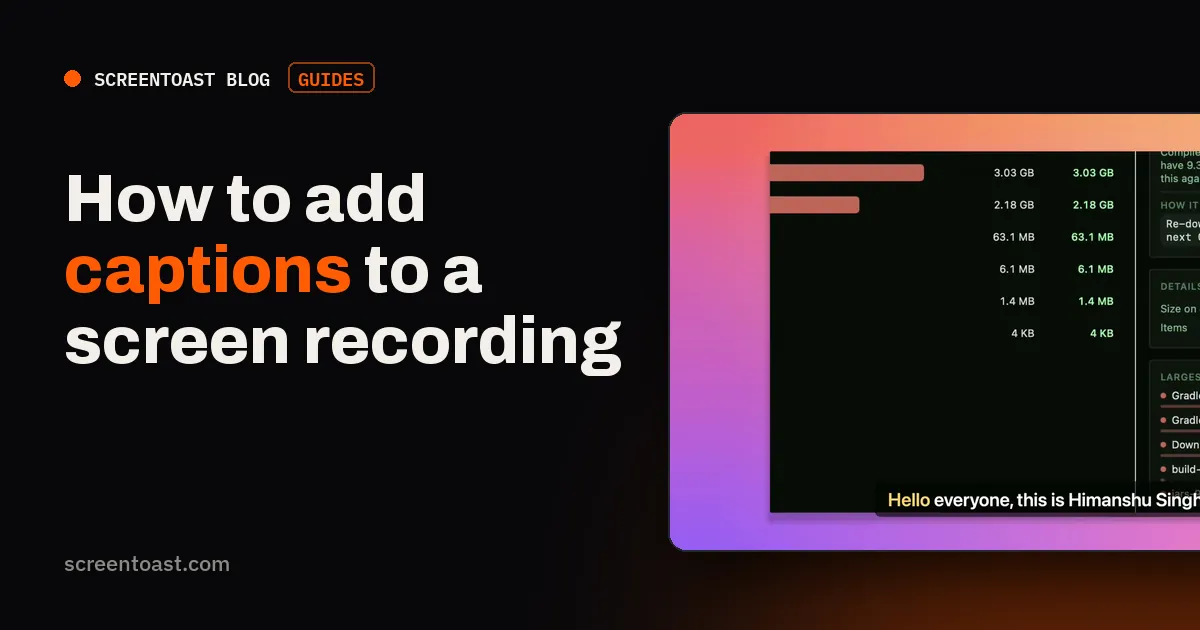
- Choose a caption style — there are four, including karaoke, which highlights each word as it's spoken — and reveal captions line by line or word by word.
- Export the video with captions burned in, and save the captions as an .srt for YouTube.
Method 2: YouTube's automatic captions
Upload your video and YouTube will auto-generate captions after processing. You can edit them in YouTube Studio → Subtitles. It's free, but captions only exist on YouTube — you'd need to download and burn them in for social.
Method 3: by hand in Final Cut or iMovie
Final Cut Pro can import and create caption roles, and has transcription in recent versions. iMovie has no transcription; you'd type titles one by one — fine for a 10-second clip, painful for a tutorial.
Caption style tips for screen recordings
- Don't cover the UI. Put captions where they won't hide the thing you're clicking — often the bottom, above the safe zone of the platform's buttons.
- Short lines. Two lines maximum, about 32 characters each.
- High contrast. White text on a dark band reads on any background.
- Word-by-word for social, line-by-line for tutorials. Karaoke style grabs attention in a feed; full lines are calmer for learning.
- Spell product names right. Transcription will mangle them — check every one.
Frequently asked questions
What's the difference between open and closed captions?
Open captions are burned into the video and always visible — best for social feeds. Closed captions are a separate file, like .srt, that viewers can turn on or off — best for YouTube.
Can I auto-caption without uploading my video?
Yes. ScreenToast transcribes your voice on your Mac; nothing is uploaded. Many online caption tools require uploading the video.
Does iMovie have automatic captions?
No. iMovie can add titles by hand, but it doesn't transcribe speech into captions.
Try ScreenToast free.
Record and edit as much as you like, with no sign-in and no trial clock. Pro is $4.92 a month, billed yearly, when you're ready to export.
macOS 14 or later · Apple silicon and Intel · Under 10 MB