ScreenToast / Blog / How to make a tutorial video on Mac, step by step
How to make a tutorial video on Mac, step by step
A good tutorial video teaches one task, at a pace a beginner can follow, with nothing to squint at. This guide walks through how to make a tutorial video on a Mac from outline to upload — the planning that saves re-takes, the setup that makes it look and sound good, and an edit you can finish in minutes.
1. Pick one task and write the outcome
Finish this sentence: "By the end, the viewer can ___." If you need "and" in it, it's two tutorials. Specific titles also rank better: "How to set up a webhook in X" beats "X tutorial".
2. Outline the steps
List every step as a short line. That's your script and your chapters. Do the task once while writing it down — you'll catch steps you'd skip from memory.
3. Set up your screen
- Make text bigger. Zoom your app or browser to 125%. Increase your code editor's font size.
- Record a 16:9 area rather than an ultrawide screen, so YouTube doesn't add black bars.
- Clean up: hide desktop icons, close other apps, turn on Do Not Disturb. ScreenToast can hide desktop icons and silence notifications for you while recording.
- Use demo data and accounts, so there's nothing private to blur.
4. Set up your audio
Viewers forgive average video but not bad audio. Use any external mic or headset if you have one, record in a small room with soft furnishings, and keep the mic at a consistent distance. ScreenToast also cleans up the mic for you, removing hiss and room noise.
5. Record in sections
Record one step (or a few) per take. Made a mistake? Pause, go back to the start of the step and carry on — you'll cut the mistake later. In ScreenToast, ⌘⇧1 pauses and resumes; the pause never shows up in the video.
6. Edit — quickly
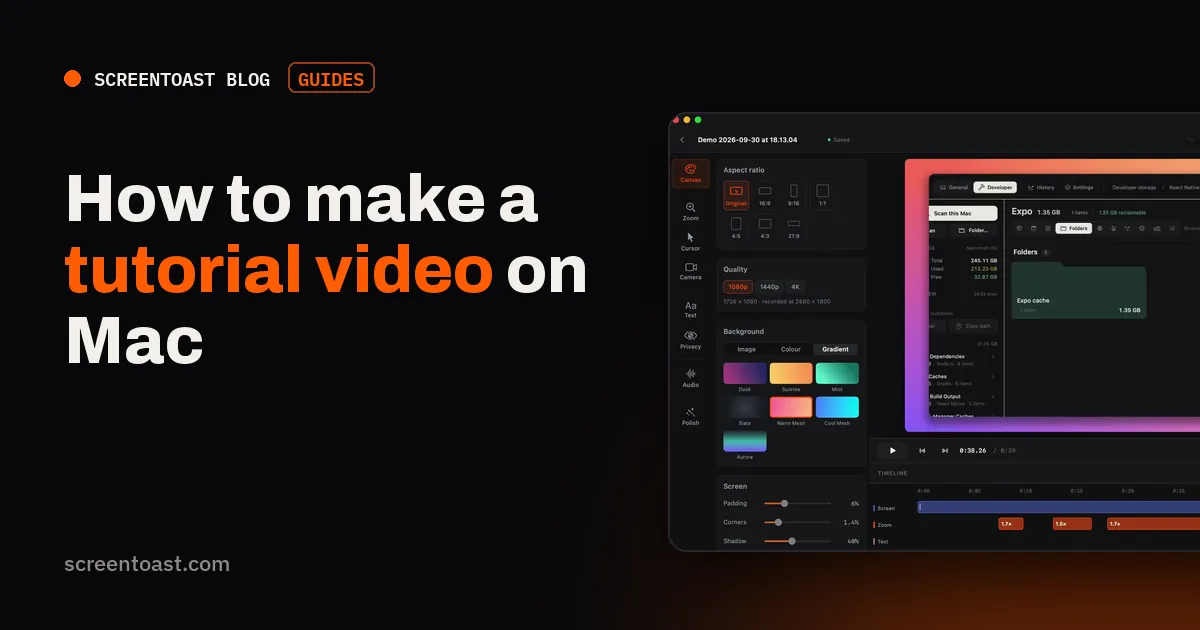
Most tutorial editing is the same five jobs. Here's how they go in ScreenToast:
- Zooms — already placed on your clicks by Auto Polish. Delete the ones you don't need.
- Mistakes and ums — open the transcript and delete the words; the video cuts with them. One click removes every filler word and tightens long pauses.
- Waiting — speed up loading and installing with a per-clip speed, and play all your typing at 3× with one command.
- Labels — add text callouts for keyboard shortcuts or settings, and an intro card with the tutorial title.
- Privacy — the app scans for API keys, tokens and emails and blurs them; add a manual blur for anything else.
7. Add captions
Captions help people watching muted and non-native speakers, and an uploaded .srt gives YouTube a text version of your video. ScreenToast transcribes on your Mac and exports an .srt. More on captions.
8. Export
Use the YouTube 1080p or 4K preset. Want a Short as well? Switch the canvas to 9:16 and export again — ScreenToast re-frames to keep the action in shot instead of chopping the sides off.
Tutorial checklist
- One task, one outcome sentence
- Steps outlined, run through once
- Text at 125%, clean desktop, Do Not Disturb
- Decent mic, quiet room
- Recorded in sections
- Zooms, cuts, speed-ups, labels
- Captions and an .srt
Frequently asked questions
What do I need to make a tutorial video on Mac?
A screen recorder, a decent microphone (even a headset beats a laptop mic), and a quiet room. Optional: a webcam and an editor, though many recorders now include editing.
How long should a tutorial video be?
As long as the task needs and no longer. For one task, 2–6 minutes. Split bigger topics into a series.
Should I script my tutorial?
Outline the steps rather than scripting every word, unless you're narrating afterwards. Talking naturally over an outline sounds better than reading.
Try ScreenToast free.
Record and edit as much as you like, with no sign-in and no trial clock. Pro is $4.92 a month, billed yearly, when you're ready to export.
macOS 14 or later · Apple silicon and Intel · Under 10 MB