ScreenToast / Blog / 12 tips to make screen recordings look professional
12 tips to make screen recordings look professional
The difference between an amateur screen recording and a professional one isn't expensive gear. It's a dozen small decisions — most made before you hit record. Here's how to make screen recordings look professional, in the order you'll need each tip.
Before you record
1. Decide the shape first
Where's it going? 16:9 for YouTube and websites, 9:16 for Reels and TikTok, 1:1 or 4:5 for LinkedIn and X feeds. Cropping a wide recording into a vertical one throws most of it away — record the right shape instead. In ScreenToast, press a number key while dragging an area to lock its shape.
2. Make text bigger than feels natural
Zoom your browser or app to 110–125%. People will watch on laptops and phones; text that's comfortable on your 27-inch display is unreadable there.
3. Clean the stage
Quit unrelated apps, hide desktop icons, close extra tabs, clear the bookmarks bar, and turn on Do Not Disturb. A cluttered screen reads as "rough draft".
4. Use realistic demo data
"Test User 1" and empty dashboards look unfinished. Fill your app with believable data — and you'll have nothing private to blur.
5. Rehearse the click path
Run the flow twice before recording. Hesitation and wandering cursors come from not knowing the route.
While you record
6. Move the mouse slowly and deliberately
Move, settle, click. Never wiggle the cursor to point at things — viewers' eyes chase it. A recorder that smooths the cursor afterwards will make deliberate movements look even calmer.
7. Record in short sections
One step per take. Mistakes cost seconds, not the whole video. Pause between sections — in ScreenToast, the pause leaves no gap in the result.
8. Get audio right
Any external mic beats a laptop mic. Record in a small, soft room. Keep system sounds on their own track so you can turn them down later.
After you record
9. Zoom in on the action
The most important tip. Zoom 1.5–2× into whatever you click, starting just before the click. Doing it by hand takes a while; recorders with auto zoom place them for you. How to add zoom effects.
10. Cut the waiting
Trim the start and end, cut mistakes, and speed up loading, typing and installs. A 3-minute recording is often a better 90-second video.
11. Frame it
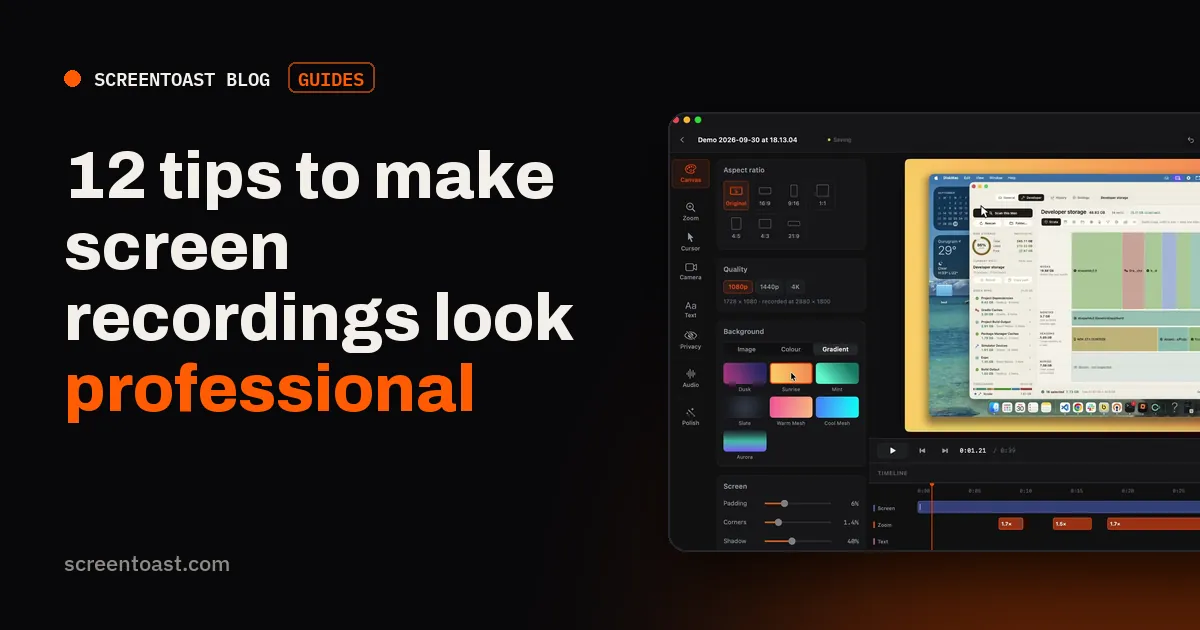
Put the recording on a background with some padding, rounded corners and a soft shadow — or inside a device frame. It instantly looks designed rather than captured. Add an intro card with the product name and an outro with where to go next.
12. Caption it and export per platform
Add captions for muted viewers, and export a version per destination rather than one file for all. Check that text is sharp in the export at full screen.
The shortcut
Tips 6, 9, 10 and 11 are where most of the editing time goes. ScreenToast does them for you when you stop recording: a smoothed cursor, zooms on your clicks, a background with padding — all editable. Then trim, caption and export with a preset. It's free to try.
Frequently asked questions
Why do my screen recordings look blurry?
Usually because the export is smaller than the recording, or a small area was scaled up. Export at the resolution you recorded at, and make text bigger before recording rather than zooming a tiny area a lot.
What frame rate should I use for screen recordings?
30 fps is fine for most UI. Use 60 fps for animations, scrolling-heavy demos or games.
How do I make my cursor look smooth?
Move deliberately while recording, then use a recorder that smooths the cursor path afterwards, such as ScreenToast or Screen Studio.
Try ScreenToast free.
Record and edit as much as you like, with no sign-in and no trial clock. Pro is $4.92 a month, billed yearly, when you're ready to export.
macOS 14 or later · Apple silicon and Intel · Under 10 MB