ScreenToast / Blog / How to add zoom effects to a screen recording
How to add zoom effects to a screen recording
A full-screen recording watched on a laptop — or worse, a phone — is a wall of tiny text. Zooming in on what you're clicking is the single biggest upgrade you can make. Here's how to add zoom effects to a screen recording: by hand in any editor, and automatically.
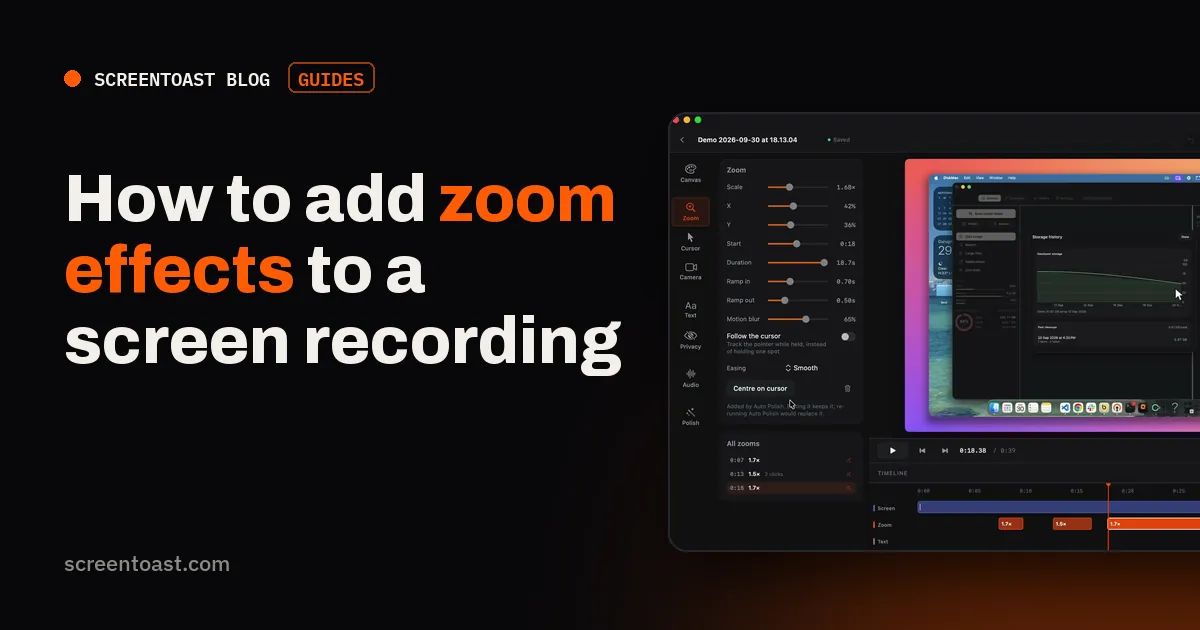
What a good zoom looks like
- Starts just before the action, so the viewer arrives as you click — not after.
- Eases in and out rather than moving linearly.
- 1.5–2×, enough to read, not so much that the viewer loses context.
- Holds while there's something to read, then zooms back out.
- Never shows past the edge of the recording (no black bars).
Method 1: by hand, in any video editor
The technique is the same in Final Cut Pro, Premiere, DaVinci Resolve, ScreenFlow or Camtasia:
- Move the playhead about half a second before the click.
- Add a keyframe for scale and position at 100%.
- Move forward ~0.5 s. Set scale to 150–200% and position so the click target is centred.
- Move to where the action finishes and add a hold keyframe.
- Move forward ~0.5 s and return to 100%.
- Set the keyframes to ease in/out.
Repeat for every click worth showing. For a 2-minute demo, that's often 15–20 zooms — about an hour.
In iMovie
Select the clip → Crop → Ken Burns. Set the Start frame to the full screen and the End frame around your target. Split the clip so the zoom only covers the moment you want. It's limited (linear movement, whole-clip duration), but free.
Method 2: automatically, on every click
Recorders with auto zoom log your clicks while you record and place the zooms for you. In ScreenToast:
- Record as normal. Click deliberately, with a short pause before each important click.
- Stop. Auto Polish has already placed zooms on the clicks that matter and merged quick bursts into one smooth move.
- On the timeline, drag a zoom block to move it, drag its ends to retime it, or delete it. Set level and easing in the Zoom tool.
- Need one Auto missed? Press Add at playhead for a manual zoom on a spot.
Two extra zoom types solve the cases that are hardest by hand:
- Follow — the zoom travels with your pointer while you drag a slider, move a card or scroll. It switches on by itself when you drag.
- Glass Loupe — magnifies just a lens around the cursor while the rest of the screen stays put.
Read more about how ScreenToast places zooms, or compare other auto zoom recorders.
Common zoom mistakes
- Zooming on every click. Opening a menu doesn't need a zoom; the result does.
- Zooming late. If the zoom starts on the click, the viewer misses it.
- Bouncing. Zoom in, out, in, out in three seconds makes people seasick. Merge nearby zooms.
- Moving while zoomed without following the cursor — the action leaves the frame.
Frequently asked questions
How do I zoom in on part of a screen recording?
In an editor, add a scale (or crop) keyframe before the moment, scale up to about 1.5–2× centred on the spot, and add another keyframe to zoom back out. A recorder with auto zoom does this for every click.
Can iMovie zoom in on a screen recording?
Yes, with the Crop tool's Ken Burns setting: set the start and end frames. It's crude — fixed duration and linear movement — but it works.
How much should I zoom in?
1.5× to 2× for most interfaces. Higher zooms make viewers lose their place.
Try ScreenToast free.
Record and edit as much as you like, with no sign-in and no trial clock. Pro is $4.92 a month, billed yearly, when you're ready to export.
macOS 14 or later · Apple silicon and Intel · Under 10 MB