ScreenToast / Blog / How to blur part of a screen recording on Mac
How to blur part of a screen recording on Mac
It happens to everyone: you record a great take, then notice a customer's email, your API key or a private Slack message in the corner. You don't need to re-record. Here's how to blur part of a screen recording on a Mac — by hand, with a tracker, and automatically.
Before recording: avoid the problem
- Use demo accounts and fake data. Nothing to blur beats a perfect blur.
- Hide desktop icons and close unrelated apps and tabs.
- Turn on Do Not Disturb — notification banners are the most common leak.
- Record a window or an area, not the whole display.
ScreenToast can hide desktop icons and silence notifications for you while you record.
Method 1: Final Cut Pro or DaVinci Resolve
- Add a blur effect (Gaussian) to the clip.
- Add a shape mask to limit the blur to a rectangle over the sensitive area.
- If the area moves, use the tracker to follow it, or keyframe the mask.
- Check every frame where the info appears — including zoomed-in moments.
Method 2: iMovie (workaround)
iMovie has no region blur. Take a screenshot of the frame, blur or cover the sensitive area in Preview, then lay it over the clip as a picture-in-picture overlay sized to the area. It works for static content only.
Method 3: ScreenToast — manual and automatic
Automatic: hide secrets
ScreenToast reads the recording for API keys, tokens, email addresses and card numbers and covers every one — even as they scroll. You review what it found and keep or remove each blur.
Manual: privacy blur
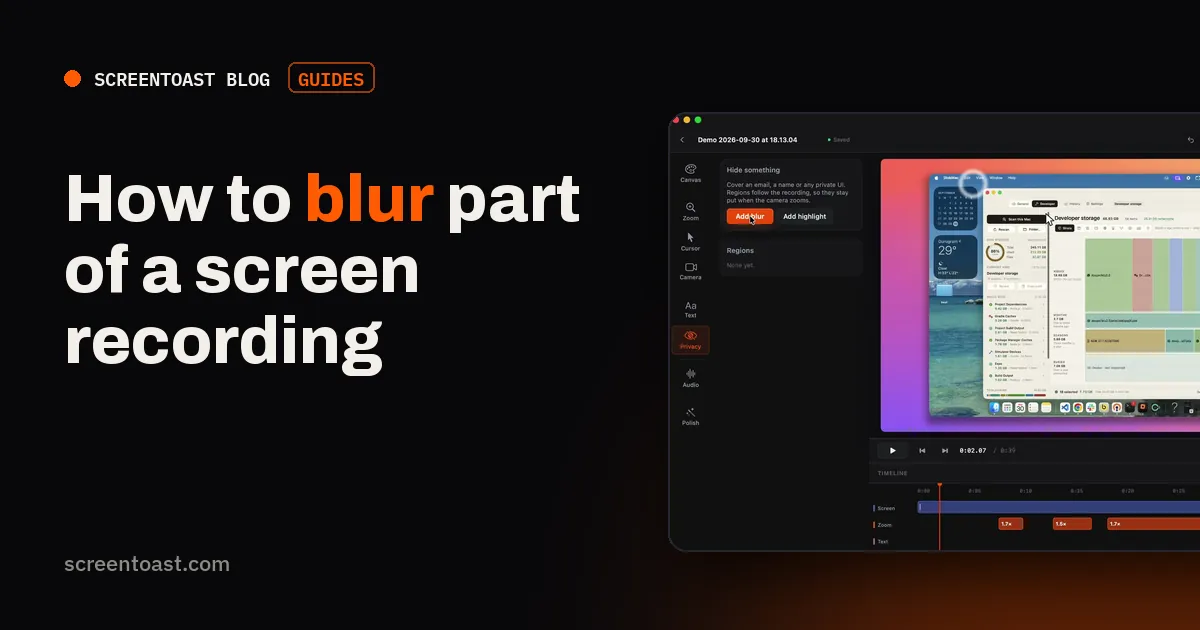
- Open the Privacy tool.
- Drag a blur box over the area on the preview; resize it from its handles.
- Set the strength, from a light frost to completely unreadable.
- Add as many as you need.
The blur is anchored to the recording itself, so when a zoom moves the picture, the blur moves with it — the classic mistake of a blur box that slides off its target during a zoom can't happen.
Blur strength: how much is enough?
A light blur is fine for a background notification. For passwords, keys and personal data, use full strength — lightly blurred text can sometimes be read. If a live API key was ever visible, even briefly, the safe move is to rotate the key.
Final check
Before publishing, scrub through at normal speed and frame by frame around every blur. Watch the zoomed-in parts and the first and last frames — leaks hide there.
Frequently asked questions
Can iMovie blur part of a video?
Not directly. iMovie has no blur tool for a region; a workaround is a picture-in-picture overlay of a blurred or solid image. Final Cut Pro, DaVinci Resolve and dedicated recorders can blur regions.
How do I blur something that moves in a screen recording?
Use a tracker in Final Cut or Resolve, or a recorder whose blur is anchored to the recording, so it stays put when the picture zooms or pans. ScreenToast's automatic secret hiding follows text as it scrolls.
Is blur enough to hide sensitive text?
Use strong blur. Light blur can sometimes be reversed or read. For passwords and keys, choose a strength that makes the text completely unreadable — or rotate the key after recording.
Try ScreenToast free.
Record and edit as much as you like, with no sign-in and no trial clock. Pro is $4.92 a month, billed yearly, when you're ready to export.
macOS 14 or later · Apple silicon and Intel · Under 10 MB